
In 2026, mobile development increasingly requires flexible solutions. Why is this happening?
First, there is a growing trend of involving distributed teams in projects. According to statistics, in recent years, over 60% of companies have switched to remote or hybrid work formats. This means that specialists are working from different parts of the world yet still require full access to the development environment, just like in-house teams.
Second, fierce competition demands the release of an MVP within just a few weeks. Waiting a month or more is no longer an option – the product risks losing relevance.
However, most modern development tools fail to meet these new requirements, because they:
remain tied to powerful local machines;
require complex SDK installation;
have certain compatibility issues.
The result? Delays in releases and difficulties caused by the lack of access to the required environment.
To avoid such problems, the Lampa.dev team decided to join the 90% of global companies that have already implemented cloud technologies in their software development processes. We tested Firebase Studio – a new platform from Google. Read on to learn more about our experience.
Firebase Studio – An Alternative to Local Development?
Recently, Google introduced Firebase Studio – a new cloud development environment focused on frontend, backend, and mobile platforms. Firebase Studio provides a full-fledged virtual machine based on noVNC with a Linux OS and a pre-installed IDE containing the necessary software components.
Even if the service cannot fully replace local coding on a physical machine, it can still be beneficial. For example, in situations where there is no access to a personal computer. Since it is accessible via a browser, the tool works on mobile phones, tablets, and other devices regardless of the operating system.
This makes it especially relevant in situations such as:
quickly making changes to code;
checking results;
continuing project work while traveling or in other conditions with limited technical resources.
We decided to test Firebase Studio in practice to determine how well it suits real-world projects. We also compared it to traditional local development, using Android Studio as the primary environment.
Firebase Studio Capabilities: General Overview
First of all, it is worth noting that the platform’s developers have integrated artificial intelligence, which significantly expands its capabilities. In addition to standard IDE functionality, it allows you to create projects based on templates. All you need to do is describe your requirements in a dedicated window, and the AI will automatically select the appropriate IDE and generate a starter project.
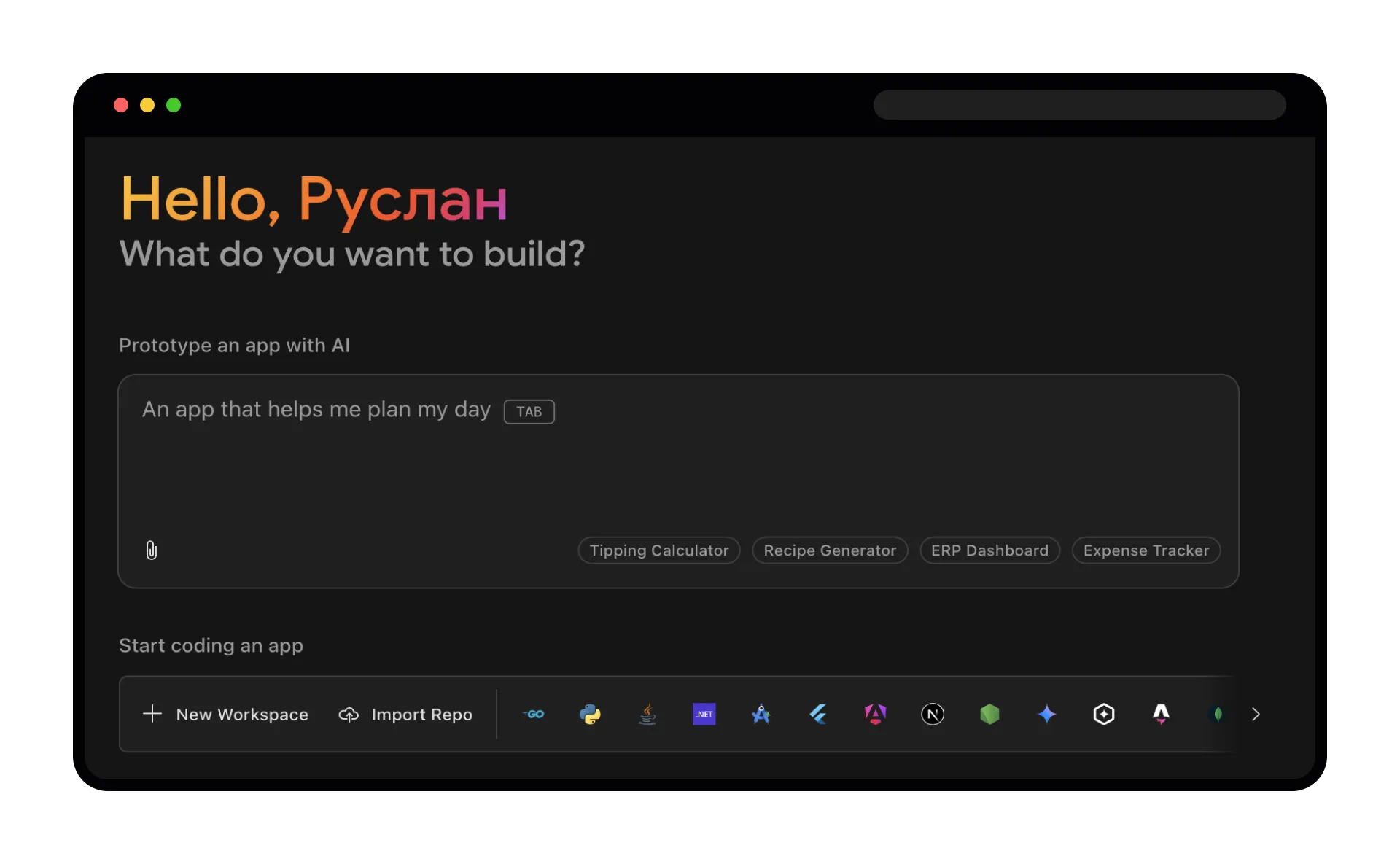
Although this functionality is currently available only for JavaScript-based projects, the presence of AI features can be considered an important advantage of Firebase Studio over its competitors. Over the past few years, there has been a clear trend: more and more developers are incorporating this technology into their workflow. For example, according to a GitHub survey, 97% of respondents have used AI-based coding tools at some point.
We tested this feature in practice. For the request: “Todo list Android application with task creation, deadline selection, and modification features”, the service generated a project based on TypeScript, NextJS, and Tailwind CSS. Here’s what it included:
A graphical interface matching the stated requirements.
Dark and light UI themes.
During project generation, it is also possible to specify preferences for layout type, typography style, image style, color scheme, and more. The finished project looks like this:
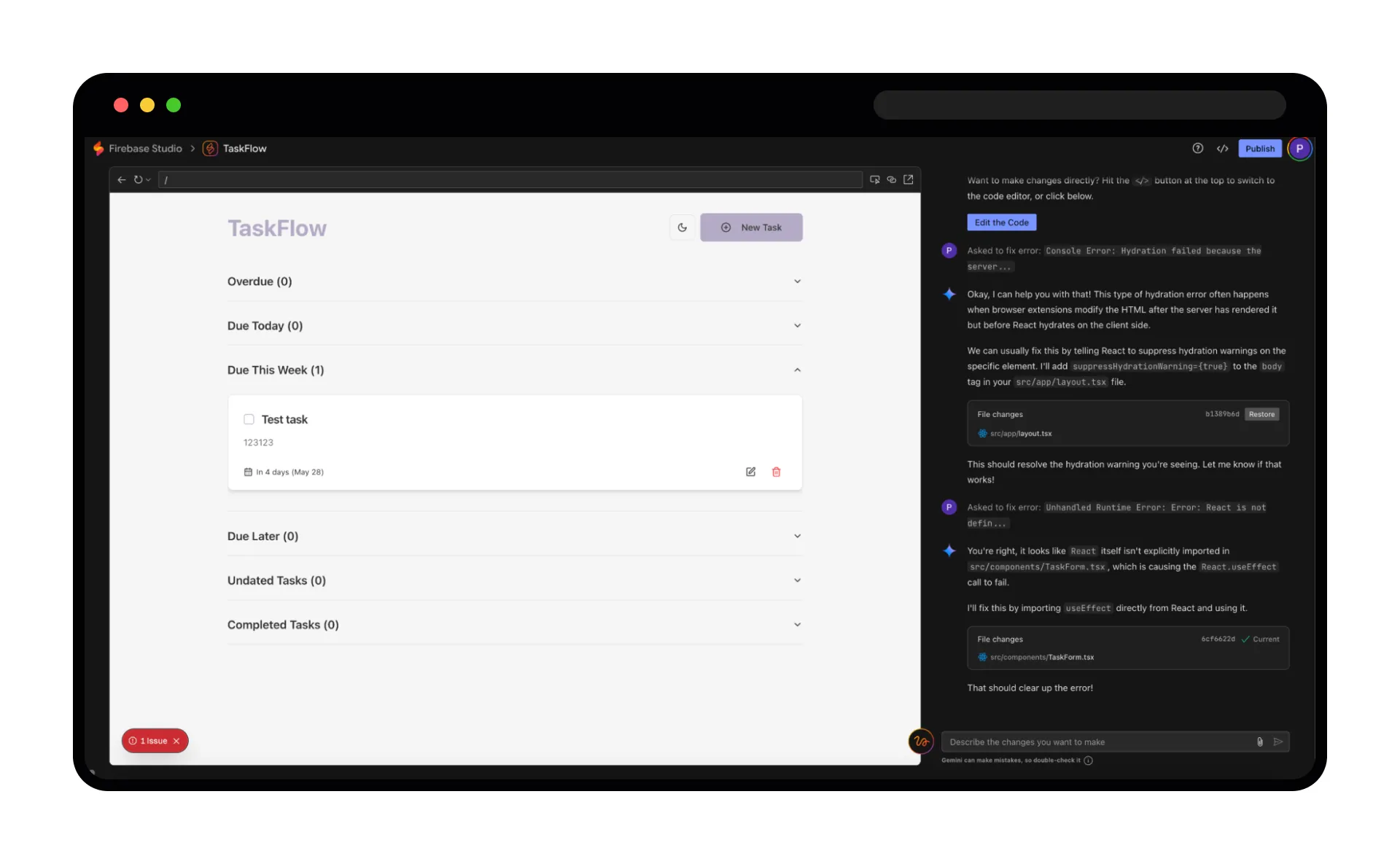
After creating the initial version of a project, it is possible to specify edits or new requirements – they will be implemented into the application. You can also open the project’s source code and continue development manually.
Practical Testing of Firebase Studio: Answers to Key Questions
During our research, we identified several critical questions worth clarifying before using Firebase Studio for full-scale mobile application development. Below are detailed answers based on our testing.
Creating an Android Project
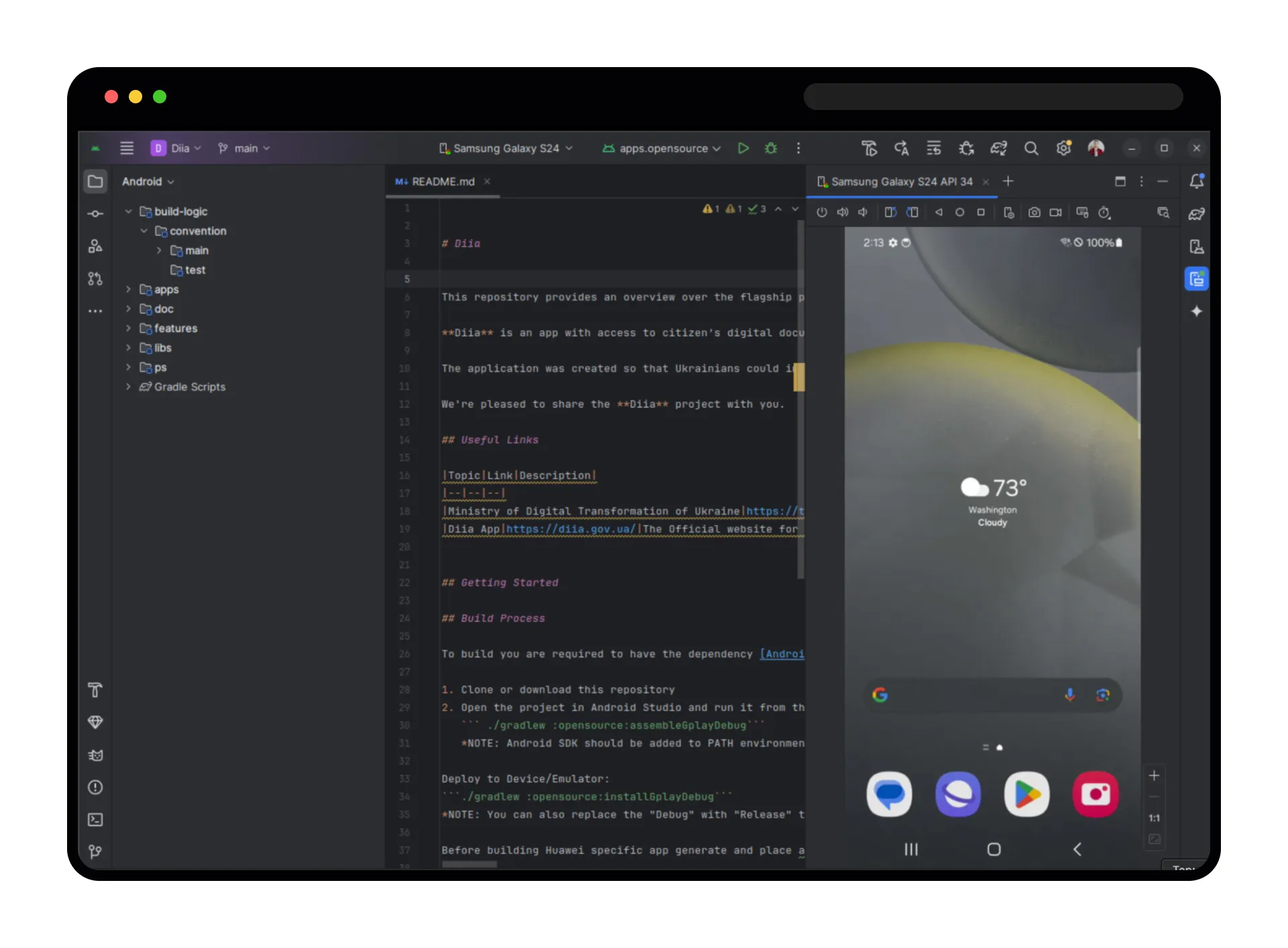
The project creation steps are no different from those in a locally installed Android Studio. However, most of the necessary software components are already installed: Git, Android SDK, virtualization support, and a set of emulators.
Connecting a Physical Device for Testing
We tried to connect a device in three ways:
Using the built-in Android Studio Wireless Debug feature.
However, in our case, it failed to automatically connect the device. Since Firebase Studio runs in the cloud while the physical device is local, the studio cannot “see” it.Via third-party TCP/IP tunneling solutions.
We used Ngrok – a tool that allows you to create a connection to a local server. It provides a public URL that redirects traffic to your localhost.
This method is quite convenient for developers who want to:Test an application on a mobile device remotely;
Demonstrate the project’s functionality to a client without deploying it to a server;
Receive webhooks from external services (e.g., Stripe, GitHub) to a local server.
However, this also turned out to be ineffective for us. This is a significant limitation when working with Android apps in Firebase Studio, as relying solely on an emulator is not always feasible during development.
Using the Firebase Device Streaming service.
This service offers several devices to choose from, and working with them is somewhat more convenient than using an emulator.
However, it has a major drawback – it is not completely free. Currently, it offers only 30 minutes of access without payment.
Clipboard and Transferring an APK File to a Device
Firebase Studio runs on a full-fledged Linux virtual machine, so there are several ways to transfer a built APK file to a physical device:
Using file-sharing services (e.g., file.io). This is arguably the most convenient option. The process involves exporting the file from the virtual environment, after which it can be saved to the local machine via a direct link.
However, keep in mind that these are third-party services, so they are not recommended for transferring important or confidential files.Using the clipboard. This method also works – both for transferring text from the virtual environment to the local machine and vice versa. Copying text in either direction works without issues.
Using Firebase App Distribution. This approach is suitable for sharing APK/AAB files.
Access to the File System, Keys, and External Repositories
There are no restrictions on file system access – the environment behaves like a full Linux machine. You can:
create keys;
store them locally;
work with GitHub or Bitbucket without any issues using standard SSH or HTTPS protocols.
Interaction with repositories works the same way as with a local machine. The virtual machine also includes the Google Chrome browser and other preinstalled standard Linux applications.
Compilation Speed
The build speed was pleasantly surprising – in many cases, it matched or even exceeded build times on a MacBook with Intel architecture. However, it is worth considering possible UI response delays due to network latency, especially during active typing.
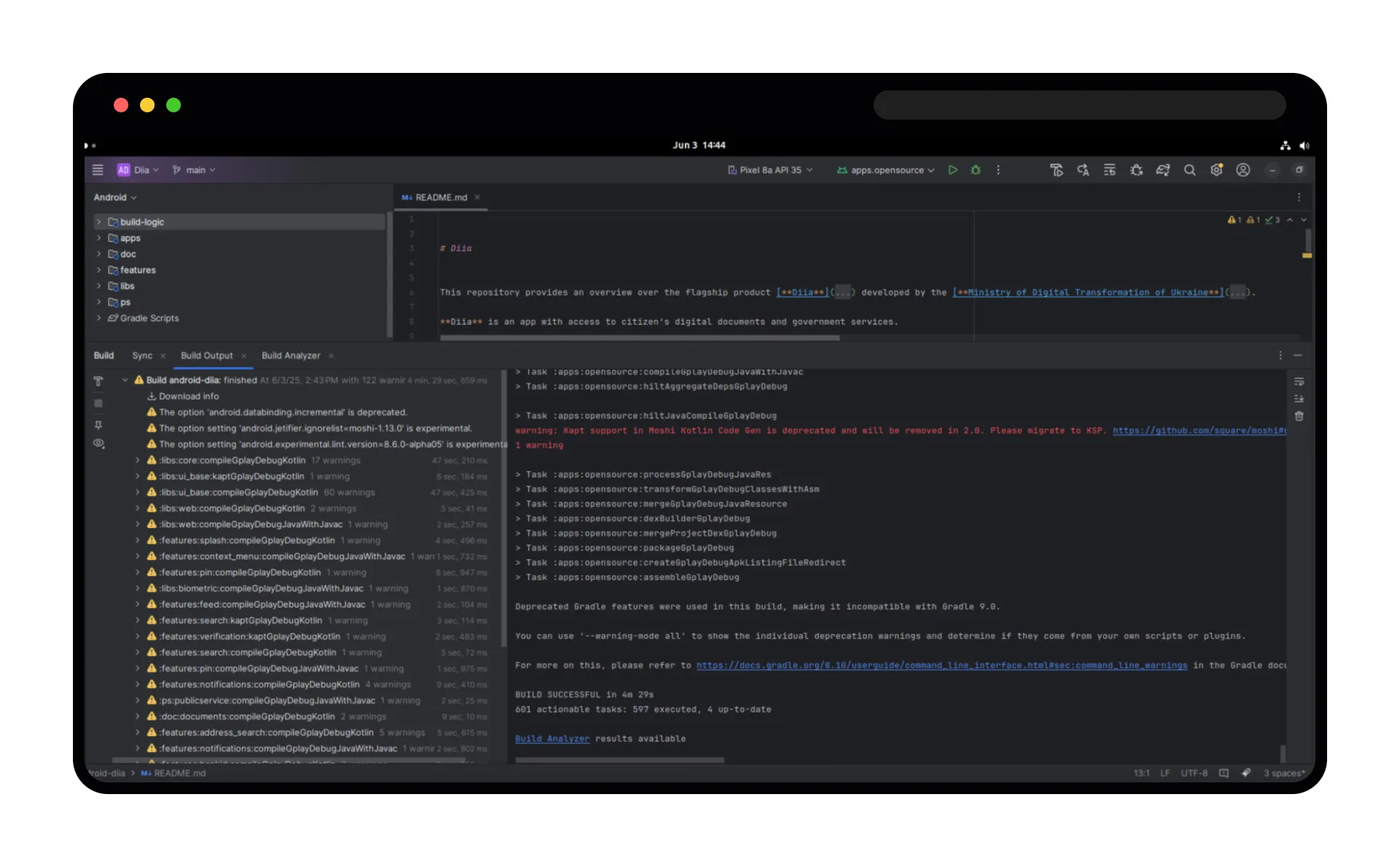
For an objective comparison of Android project compilation speeds, we selected the open government project “Diia” (from its GitHub repository), which has a structure typical of medium-sized mobile applications.
As the physical device, we used a MacBook Pro 2018 with an Intel Core i7 processor and 16 GB of RAM.
We compared the first full build (clean build) and a subsequent build. Here are the results that our team obtained:
Build Type | Firebase Studio | MacBook Pro (Intel) |
Initial Build | 4 m 29 s | more than 10 m |
Subsequent Build | 2 m 29 s | 5 m 37 s |
Firebase Studio demonstrated strong performance – compilation time was approximately twice as fast compared to the physical Intel-based device.
This result indicates a high level of Firebase infrastructure optimization, particularly in terms of the resources allocated to the virtual machine.
Given this, Firebase Studio can be an effective alternative to physical machines, especially for:
new startups without the budget for powerful hardware;
teams working in a cloud environment or using CI/CD pipelines;
situations where rapid MVP development is crucial.
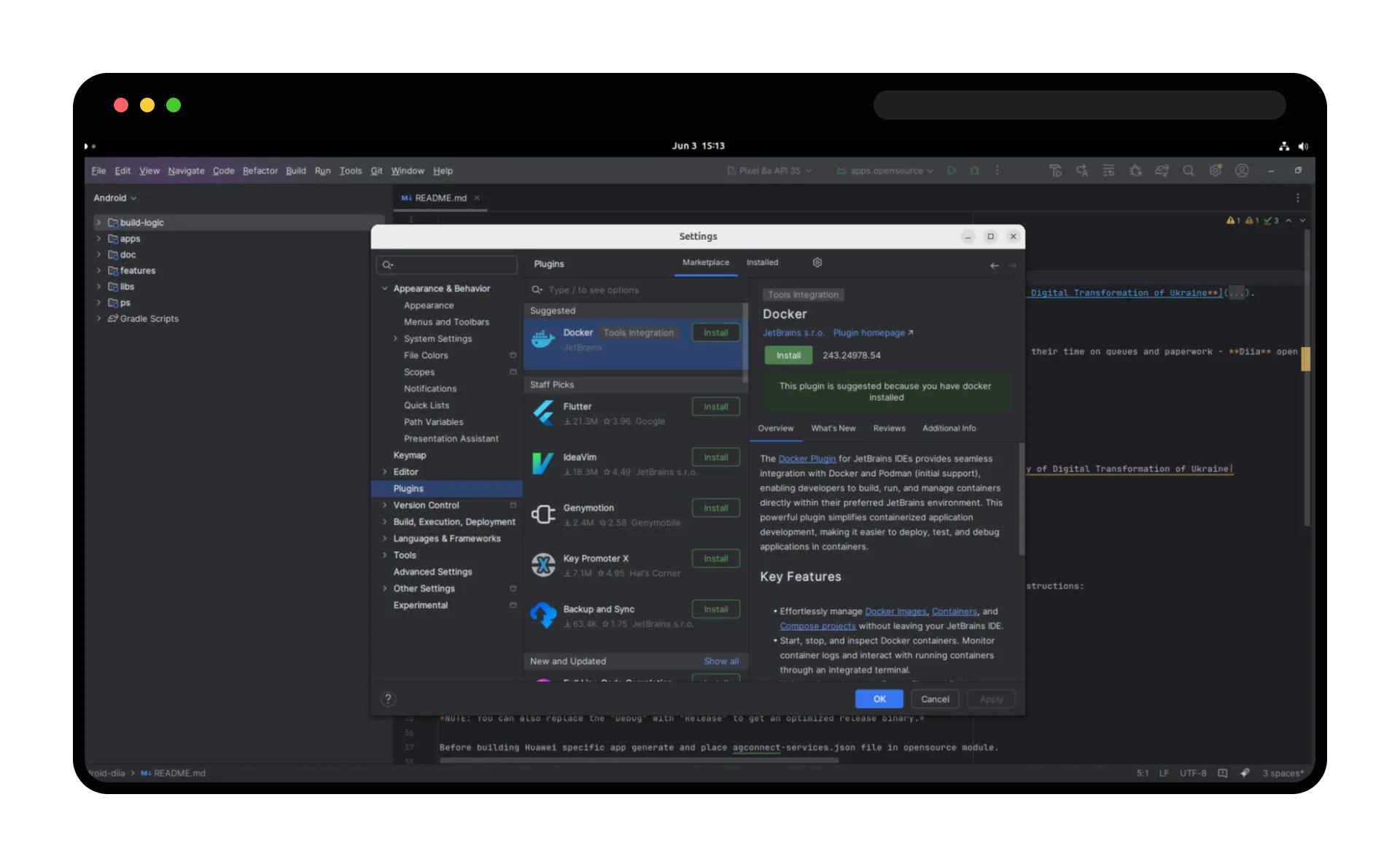
Plugin Support
Plugin support works fully. You can install both official and third-party extensions, making the environment flexible and adaptable to the needs of a specific project.
Compatibility with Different Types of Projects (Jetpack Compose / XML)
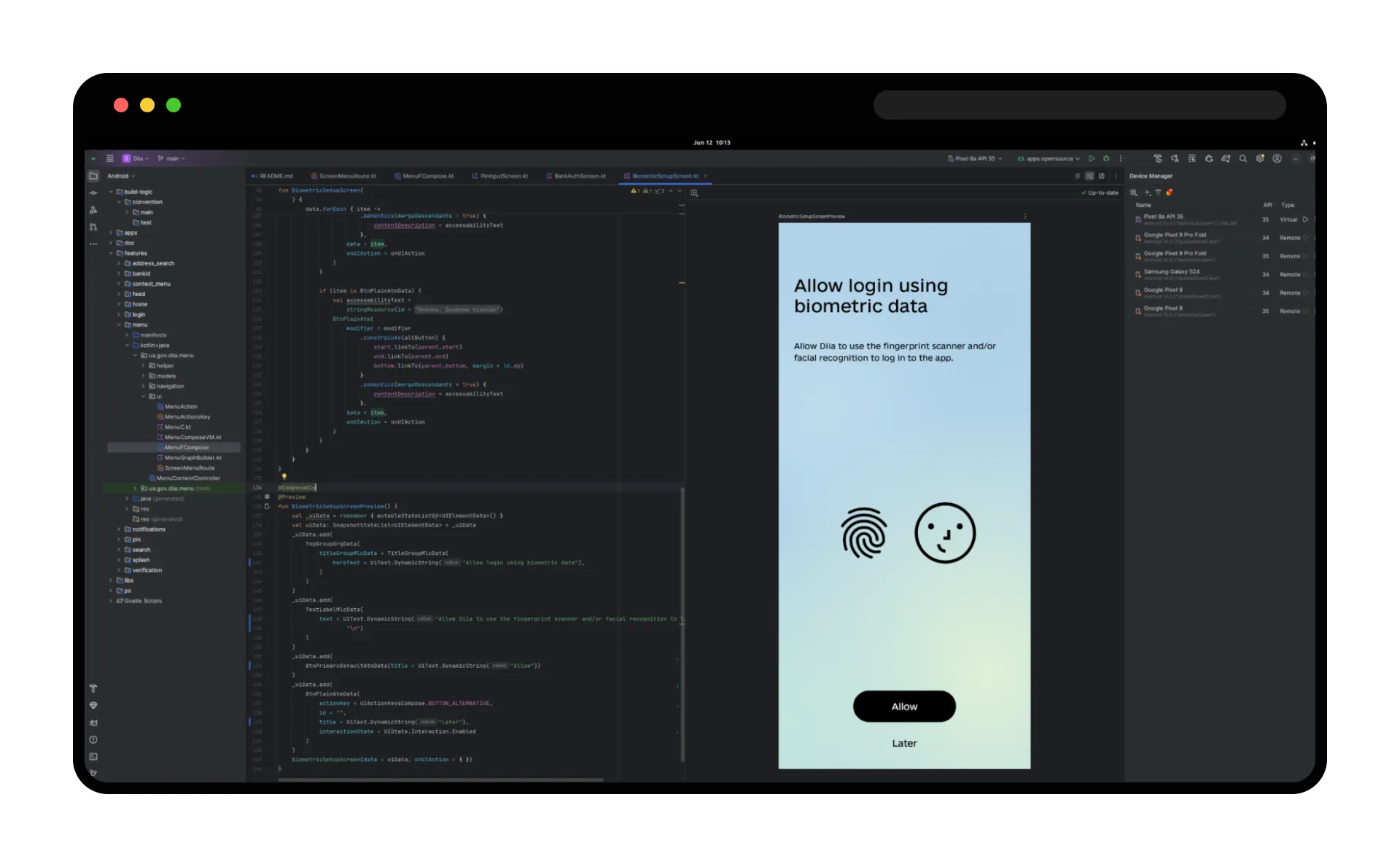
During testing, both Jetpack Compose and classic XML projects worked correctly. Having a large number of dependencies did not cause any issues. Therefore, it can be stated that the environment is ready to handle projects of any complexity.
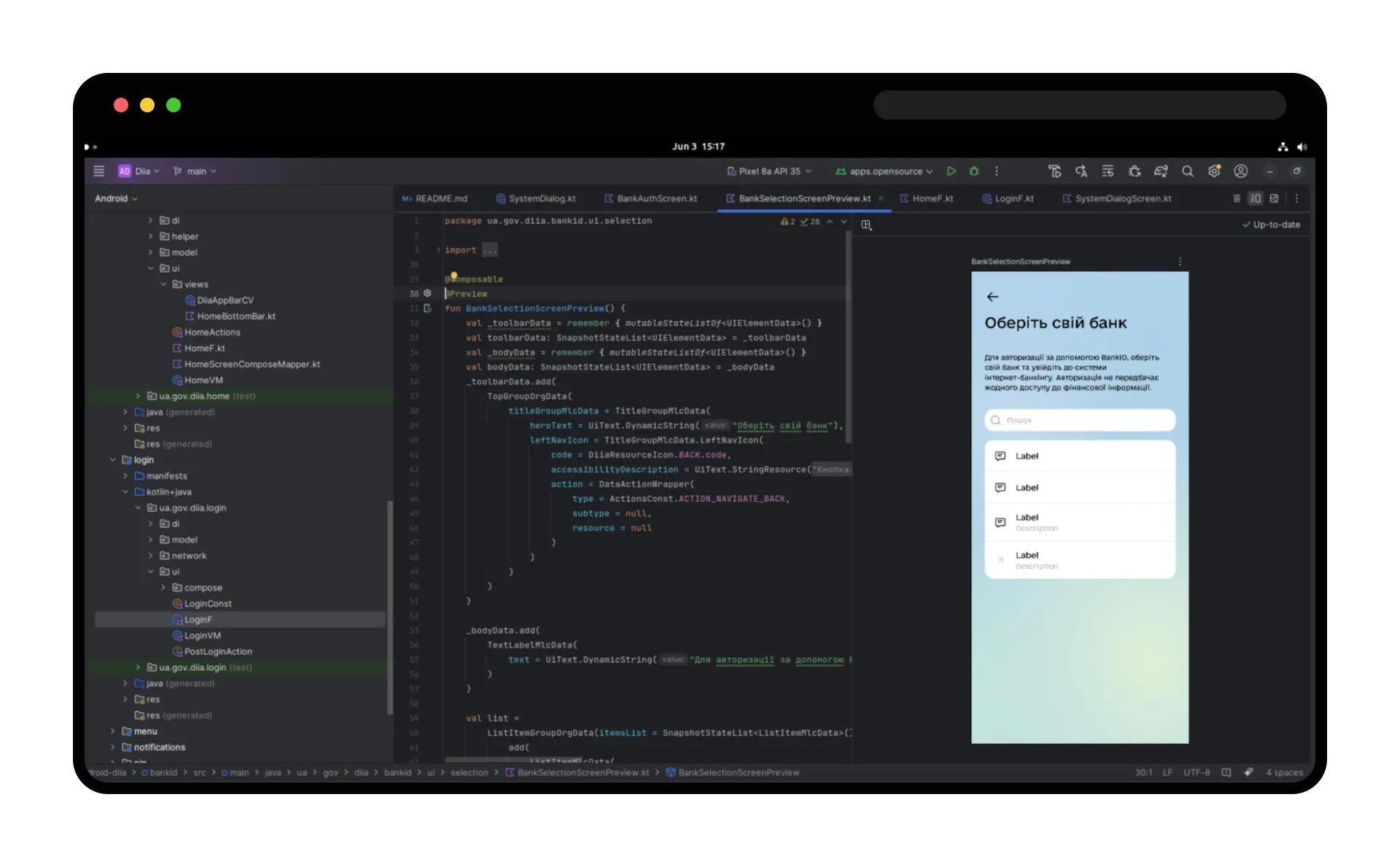
Built-in components for convenient work with Jetpack Compose also function correctly – for example, the layout preview.
Pricing and Limits
Firebase Studio is currently in a limited free-access mode:
3 workspaces – free for all users.
10 workspaces – available if the account is linked to the Google Developers Program.
Up to 30 workspaces – available under the paid Google Premium Bundle plan ($300 per year), which also includes a range of other services.
You can find full pricing details on the relevant page of the official Firebase Studio website.
Data Storage Security (Commercial Development)
As of now, Google does not provide complete public documentation on the internal security of Firebase Studio workspaces, particularly regarding source code storage conditions.
Therefore, if you plan to work with confidential or commercial projects, it is recommended to carefully review Google’s data security policies. As an alternative, avoid storing critical information in the open environment until official guarantees are provided.
Summary
The Lampa.dev team tested Firebase Studio in real-world mobile app development conditions. We concluded that it’s a promising cloud environment capable of competing with local tools not only in terms of functionality but also in performance.
In many cases, the project compilation speed in Firebase Studio was higher than on a physical machine running Android Studio – a pleasant surprise for us.
This solution is optimal for scenarios that require flexibility: working outside the office, quickly launching an MVP, or supporting a cloud-based CI/CD infrastructure. During testing, we noted:
Convenient AI-powered project setup.
Easy-to-use emulators.
Git repository integration.
At the same time, the service has certain drawbacks:
Limited access to physical devices.
Time limits on free use of cloud devices.
No publicly transparent policy on source code storage security exists, which may be a deterrent for commercial or confidential projects.
Bottom line: Firebase Studio is an effective tool that can already make life easier for mobile development teams, especially for:
Professionals who often work from different locations.
Startups without a full technical infrastructure.
Educational and demo initiatives.
We recommend it to anyone seeking flexibility, cloud scalability, and a fast start.